Most teams start managing brand assets in Google Drive. It is already there, it is free, and it works well enough in the early days. A folder for logos, a folder for colors, and a shared document for brand guidelines. Simple.
Then the team grows. Clients multiply. Vendors need assets. New employees join and cannot find the right logo. Someone sends the old version of the brand mark to a printer. A client gets access to the wrong folder.
This guide covers how to set up Google Drive for brand asset management properly, and explains why most teams eventually need something built specifically for the job.
The Right Folder Structure for Brand Assets in Google Drive
If you are going to use Google Drive for brand assets, folder structure is everything. Without a clear, enforced system, your brand assets will become disorganized within weeks of onboarding a new team member or client.
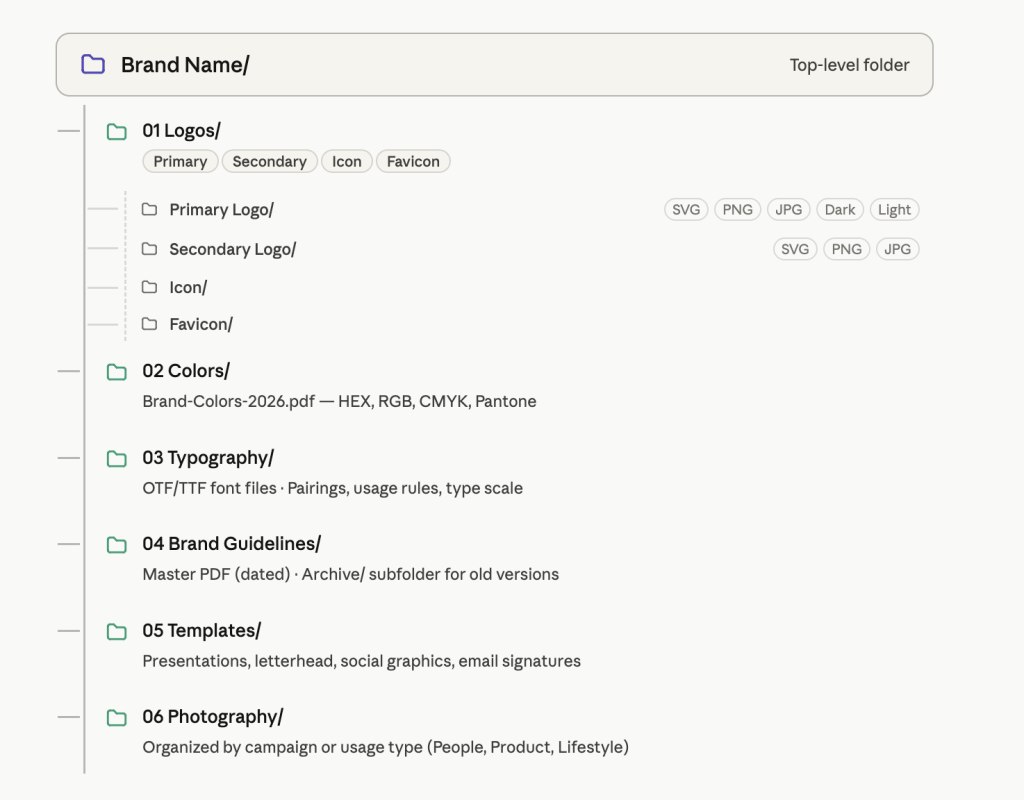
A well-organized folder structure does two things. It makes it obvious where every asset lives, so team members stop asking and start finding. And it signals to everyone with access that the system has rules worth following.
Inside the top-level brand folder, create numbered subfolders so they sort consistently regardless of who is viewing them.
Logos
This is the most important folder in the structure and the one most likely to become disorganized without clear rules. Inside Logos, create subfolders for each variant: Primary Logo, Secondary Logo, Icon, and Favicon. Each variant folder should contain subfolders for the following formats: SVG, PNG, JPG, Dark Versions, and Light Versions.
A designer building a website needs an SVG. A social media manager needs a PNG. A vendor producing merchandise needs a vector file. If all versions live in one flat folder, people download the wrong format simply because it was the first result they found.
Colors
A single clearly named document listing every brand color with its hex code, RGB value, CMYK value, and Pantone reference. Name the file clearly: Brand-Colors-2026.pdf. A PDF prevents accidental editing and is easily shareable outside Drive.
Some teams also include a small color palette graphic as a JPG or PNG for quick visual reference without opening a document.
Typography
Font files in OTF or TTF format for every typeface the brand uses, plus a reference document showing font pairings, usage rules, and type scale. The reference document should answer every question a designer or marketer would have without needing to consult anyone.
Include licensing notes where relevant. Using a font outside its license is a legal risk that a well-maintained typography folder can prevent.
Brand Guidelines
The master brand guidelines document is in PDF format. Include the date in the filename so team members always know which version is current. When you update the guidelines, upload the new version, rename the old one to include “Archived,” and move it into an Archive subfolder.
This prevents confusion caused by multiple identically named documents sitting at the same folder level.
Templates
Presentation templates, letterhead, social media templates, and email signatures are organized by type. If your team uses a specific design tool, include both the editable source file and an exported version so people without that software can still reference the format.
Photography
Approved photography organized by campaign or usage type. A campaign-based organization works well for brands running regular marketing campaigns. Usage-based organization, such as People, Product, and Lifestyle, works better for brands with evergreen photo libraries.
For agencies managing multiple clients, replicate this entire folder set for each client at the top level. Your top-level folder becomes a client list, and each client has its own complete structure underneath it.
Naming Conventions That Actually Work
Folder structure alone is not enough. Consistent file naming prevents version confusion and makes search actually useful in Google Drive. Drive searches filenames, not content, which means a file called “logo_final2.png” is nearly impossible to find reliably six months after upload.
The Naming Pattern
Use this pattern across every file in your brand asset library: BrandName_AssetType_ColorVersion_Format_Date
For example: Brandy_Logo_Primary_Dark_SVG_2026.svg
This convention answers every question before downloading: whose brand, what asset type, which variant, which color version, which format, and whether it is current. When those questions are answered by the filename alone, the volume of “which logo should I use?” messages drops immediately.
Key Rules to Enforce
Never use spaces in filenames. Spaces create problems when files are shared outside Drive, opened in design applications, or referenced in code. Use hyphens or underscores instead.
Always include the year for any asset that may be updated over time. Logos, guidelines, and templates get refreshed. The year in the filename makes it immediately clear which version is current. Never use generic names like “logo_final” or “logo_final_FINAL_v2,” which communicate nothing and create exactly the version confusion you are trying to prevent.
How to Make Conventions Stick?
The most effective approach is to make the convention document visible. Pin it at the top of the relevant folder, name it something clear like “READ THIS FIRST: Naming Conventions,” and reference it during onboarding for any team member who will be adding files.
Conventions only survive if they are reinforced consistently. One person uploading a file with the old naming pattern is enough to restart the confusion.
Managing Permissions in Google Drive
Permission management is one of the biggest challenges in using Google Drive for brand assets. Google Drive offers three access levels: Viewer, Commenter, and Editor. For most brand asset scenarios, the goal is to limit editing access to the people directly responsible for maintaining the library.

Internal Team Access
Editor access makes sense for the designers and brand managers who maintain the asset library. For everyone else, including marketing, sales, leadership, and operations, Viewer access is sufficient and prevents accidental deletions, overwrites, or disorganized additions that break the folder structure you have built.
External Vendors and Partners
For external vendors and agency partners, create a separate shared folder containing only the specific assets they need. Never share your top-level brand folder with external parties. This limits exposure and reduces the risk that confidential or in-progress materials will be accessed or shared beyond their intended audience.
A practical approach is to maintain a dedicated “External Partners” folder as a curated subset of your full asset library. When a vendor needs your logo, share that folder rather than the master library. When the engagement ends, revoke their access to that folder without affecting any other folders.
The Limitation to Know
Google Drive permissions are folder-level. You cannot restrict access to a specific file within a shared folder without creating a separate folder structure for each permission tier. For teams managing assets across many clients or with complex stakeholder structures, this quickly becomes unmanageable. Every new permission requirement means a new folder, and the structure multiplies faster than it can be maintained.
Where Google Drive Starts to Break Down?
Google Drive is a good starting point. For teams managing one brand with a small, trusted team, the folder structure above is sufficient. Many small businesses and agencies have operated this way for years without significant problems.
The problems become apparent as you scale. They tend to arrive quietly: a gradual increase in asset requests, a slow erosion of naming discipline, a growing list of external stakeholders needing varying levels of access.
No Brand Context
A logo file in Google Drive is just a file. There is no usage guidance attached to it, no approved color variations displayed alongside it, and no notes on when to use the dark version versus the light one. That context lives in a separate document that most people download once during onboarding and never open again.
The result is that people use assets without knowing whether they are using them correctly.
No Visual Organization
Google Drive displays files as thumbnails or list items. There is no way to show logos in visual context, display color swatches alongside hex codes, or present typography as it actually renders. This creates a practical problem when onboarding new team members who need to understand the brand visually, not just locate files.
It also creates a credibility problem when presenting brand assets to clients, because a folder structure is not a brand experience.
Version Control Is Manual
Google Drive has version history on individual files, which is useful in limited scenarios. What it lacks is a clear, enforced way to communicate which version of an asset is the current one. Most teams end up with multiple versions of the same logo scattered across different folders, with no clear indicator of which one to use.
This is exactly the scenario that produces outdated logos on printed materials months after a brand refresh.
External Sharing is Clunky
Sending a vendor or agency partner to a Google Drive folder is functional but not professional. The recipient sees a list of files with no context about what they are looking at or guidance on how to use what they find. For agencies in particular, the way brand assets are shared with clients reflects the quality of their work. A Google Drive link does not reflect quality.
No Brand Guidelines Integration
Your brand guidelines document lives in a separate folder, disconnected from the assets it governs. A designer downloading a logo has to know to consult the guidelines, know where to find them, and remember what they say. In practice, this connection rarely happens consistently, and brand inconsistency follows.
When to Move to a Dedicated Brand Asset Management Tool?
There is no single trigger point that tells you it is time to move beyond Google Drive. The transition is usually prompted by a combination of frustrations that accumulate until the cost of staying outweighs the cost of switching.
You Manage More Than One Brand or Client
Multi-brand management in Google Drive leads to folder duplication and a lack of a central overview. Switching between client assets requires navigating folder structures, and there is no dashboard showing all brands at once. Agencies hit this wall early and consistently.
External Stakeholders Need Regular Access
The friction of managing Google Drive permissions for vendors, partners, and clients becomes significant at scale. Every new external relationship means another permission configuration, another shared folder, and another person who may or may not be accessing what you intended.
Brand Consistency is a Recurring Problem
If outdated logos, incorrect colors, or off-brand materials keep appearing despite your best efforts to maintain the Drive, the issue is usually a discovery-and-access problem, which Google Drive cannot solve. People use the wrong assets because they cannot confidently identify the right ones.
You Need to Share Guidelines Professionally
Sending a Google Drive link to a new agency partner or a new hire is not the same as giving them access to a structured, visual brand space. A Drive link says, “Here are some files.” A proper brand space says, “Here is our brand, presented clearly and completely.”
Your Team is Growing
The more people who need access to brand assets, the more important it becomes to have a system with proper permissions, visual organization, and built-in brand context. Onboarding becomes significantly faster when new team members can navigate a brand hub independently rather than relying on someone to show them where everything lives.
You Work with Multiple Agency Clients
Agencies managing multiple client brands need more than a folder system. They need a platform that supports multiple brand environments, client-facing presentation, and efficient account switching, all from one place. Brand management for agencies requires dedicated tooling built around that workflow.
What a Dedicated Brand Asset Management Tool Looks Like?
The gap between Google Drive and a dedicated brand asset management platform is not primarily about storage or organization. It is about context, presentation, and the experience of the people who use it.
Brandy is a brand asset management platform built specifically for the problems Google Drive cannot solve.
One Brand Space, One Link
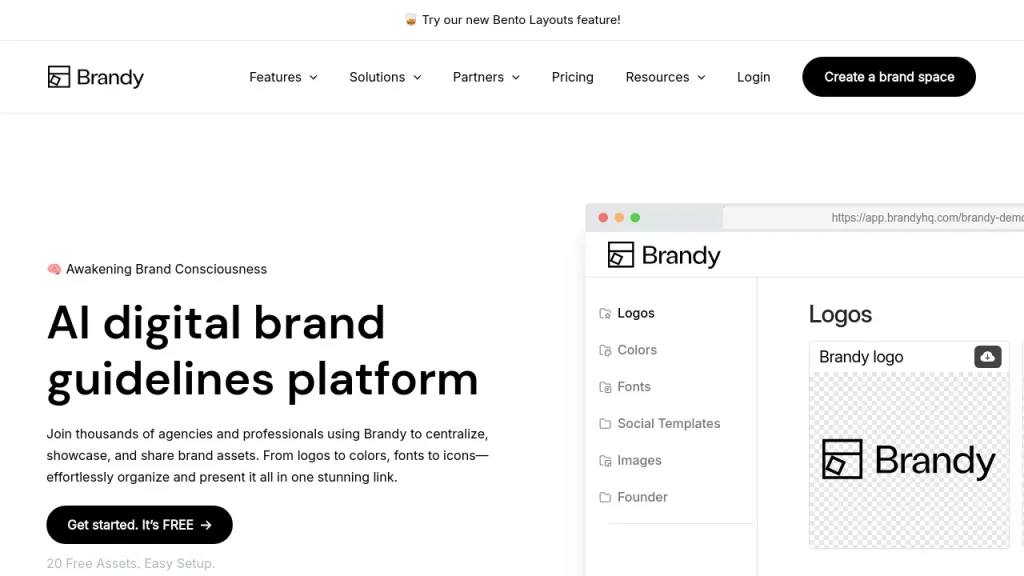
Every brand in Brandy gets a dedicated brand space: a visual, structured environment where logos are displayed with all variants and download options, colors appear as swatches with hex and RGB codes, and typography is shown in context with the actual typefaces rendered as they would appear in use. Guidelines are integrated directly with the assets they govern.
The brand space has a public URL. Sharing brand assets means sending one link. External stakeholders see exactly what you want them to see in a presentation that reflects your brand, not a folder.
Built for Agencies
For agencies, Brandy supports unlimited brand spaces. Each client has their own dedicated environment accessible from a single dashboard. Permissions are managed at the brand space level, switching between clients is instant, and there is no risk of one client seeing another’s assets.
The free plan includes core brand asset management features and full brand guidelines functionality, enough for most small teams to get started at no cost.
What Changes After Setup?
Team members stop sending messages asking for logo files. New hires find brand assets independently on their first day. Agency partners receive a brand link instead of a folder, which immediately identifies the brand they are working with.
Outdated assets stop circulating because there is one authoritative source everyone knows to use.
Final Thoughts
Google Drive is a practical starting point for brand asset management. With the right folder structure, naming conventions, and permission setup, it can serve a small team well for a meaningful period of time.
But it was not built for brand management. Brand management requires visual presentation, contextual guidance, professional sharing, and a system that scales without multiplying administrative overhead. As your team grows, your client list expands, and your brand governance needs become more complex, Google Drive creates friction that a dedicated tool eliminates.
Brandy was built specifically for this transition. It takes what Google Drive does with files and adds everything brand management actually requires: visual context, usage guidance, professional presentation, and a permission structure that makes the right assets the obvious choice for everyone who needs them.
Managing brand assets in Google Drive? Try Brandy free and see the difference a dedicated brand space makes.
Related reading: Brandy vs Google Drive for a full comparison of brand asset management features side by side.